

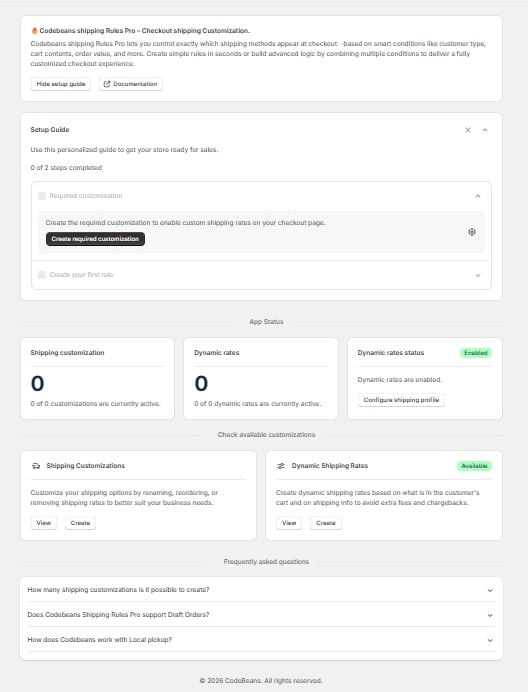
The app dashboard
What you can do
Hide
Remove shipping methods that shouldn’t be offered for a given order.
Sort
Reorder shipping methods so the one you want to promote appears first.
Rename
Change a shipping method’s label at checkout.
Target
Match by cart contents, country, Shopify Market, customer tag, or customer company.
Dynamic rates
Quote your own rates live at checkout through a carrier service callback, using conditions across the cart, customer, destination and line items.
Import and export
Save rule configurations as JSON to back them up or move them between stores.
Before you start
You’ll need:- A Shopify store with the app installed.
- The access scopes the app requests on install, granted automatically:
read_shipping,write_shipping,read_markets,read_delivery_customizations,write_delivery_customizations, andread_customers. - For country- or market-based rules: shipping zones already set up in Shopify.
- For customer tag or company rules: Protected Customer Data access approved in your Partner Dashboard.
- A plan that covers the rule types you want to use — see Choosing a plan.
Where to go next
Get set up
New to the app? Start with the setup guide.
Build your first rule
Pick the rule type that fits what you want to target.
Dynamic rates
Calculate rates live instead of changing existing methods.