

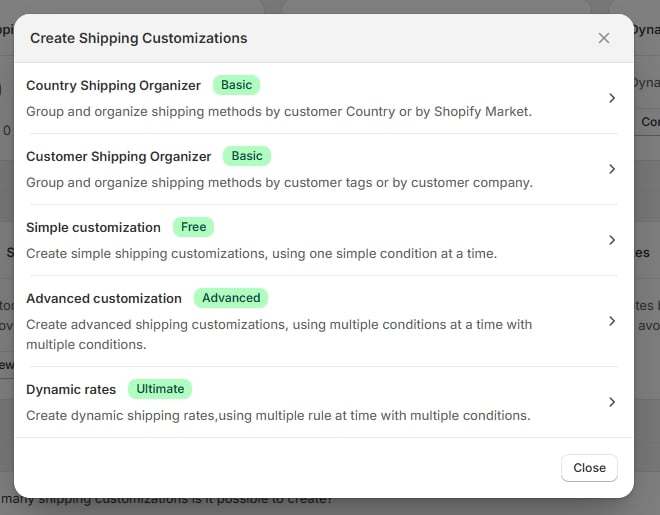
"Create Shipping Customizations" — the five entries
The list
The modal has five entries. Each carries a badge naming the plan it needs:
The two organizer entries open a second modal where you pick how to group:
- Country Shipping Organizer → organize by country (Country Shipping Organizer) or by Shopify Market (Shopify Market Shipping Organizer).
- Customer Shipping Organizer → organize by customer’s tags (Customer Tag Shipping Organizer) or by customer’s company (Customer Company Shipping Organizer).
Locked types
A rule type your plan doesn’t cover shows a padlock instead of the usual arrow, and its badge turns amber. Selecting it takes you to plan selection rather than opening an editor, and if you reach the editor by URL you’ll get an upgrade screen naming the plan you need. See Choosing a plan.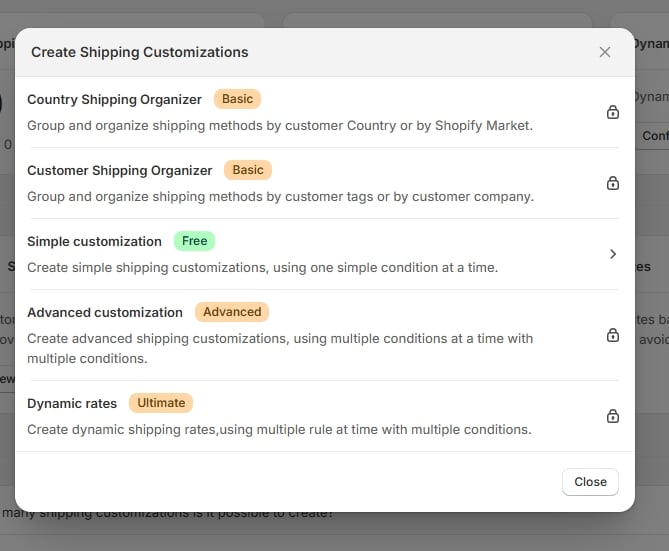
On the Free plan — Simple customization available, the rest locked
If the app can’t confirm your plan with Shopify, nothing is locked — every type stays selectable.
Which one do I want?
- If you just need to hide, sort, or rename a method based on one thing (cart total, weight, item count) → Simple.
- If you need multiple conditions combined with AND/OR → Advanced.
- If the deciding factor is where the order is shipping to → Country or Market.
- If the deciding factor is who the customer is → Customer Tag or Customer Company.
- If you need to add a rate of your own rather than change an existing one → Dynamic rates.
There is no conversion between rule types. Pick the type that matches how you want to target the rule — if you outgrow it, delete it and start over with the type you actually need.