

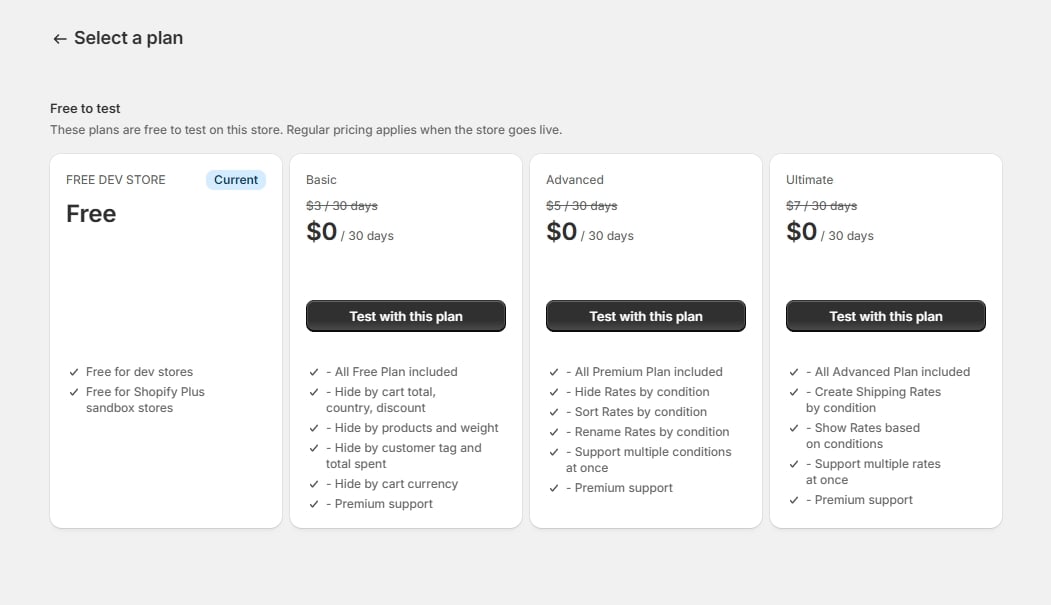
An earlier version of the app showed plans on this page. Plans now live in the Shopify admin — opening Billing takes you there directly.
1
Open Billing
Open Billing from the app’s navigation menu. The Shopify plan page opens in the admin.
2
Pick a plan
Pick the plan that covers the rule types you need.
3
Confirm
Confirm on Shopify’s plan selection page, then return to the app.
What each plan unlocks
Your plan decides which rule types you can create and edit:
Each plan includes everything in the plans below it, so Ultimate covers every rule type. Paid plans come with a 3-day free trial, and dev and Shopify Plus sandbox stores are free.
In the Create Shipping Customizations modal each rule type carries a badge naming the plan it needs. A type your plan doesn’t cover shows a padlock instead of an arrow, and selecting it brings you here rather than opening an editor. See Choosing a rule type for what each type does.
If you downgrade
Nothing is ever deleted. Your rules, conditions and shipping-method selections are all kept exactly as you left them. However, any enabled rule that uses a feature your new plan no longer covers is turned off automatically, and stops affecting checkout. This is deliberate: a rule that stays active would keep applying your old plan’s features at your new plan’s price. The app tells you when this happens — a banner on the Home page names each rule that was switched off:“3 shipping rules were turned off after your plan change” — with the rules listed by name, and a View plans button.